
Configuring an Ethernet connection by using nmtui
If you connect a host to an Ethernet network, you can manage the connection’s settings in a text-based user interface. Use the nmtui application to create new profiles and to update existing ones on a host without a graphical interface.
In nmtui:
Prerequisites
- A physical or virtual Ethernet Network Interface Controller (NIC) exists in the server’s configuration.
Procedure
-
If you do not know the network device name you want to use in the connection, display the available devices:
# nmcli device status DEVICE TYPE STATE CONNECTION enp1s0 ethernet unavailable -- ... -
Start
nmtui:# nmtui - Select Edit a connection, and press Enter.
-
Choose whether to add a new connection profile or to modify an existing one:
-
To create a new profile:
- Press Add.
- Select Ethernet from the list of network types, and press Enter.
- To modify an existing profile, select the profile from the list, and press Enter.
-
-
Optional: Update the name of the connection profile.
On hosts with multiple profiles, a meaningful name makes it easier to identify the purpose of a profile.
- If you create a new connection profile, enter the network device name into the Device field.
-
Depending on your environment, configure the IP address settings in the
IPv4 configurationandIPv6 configurationareas accordingly. For this, press the button next to these areas, and select:- Disabled, if this connection does not require an IP address.
- Automatic, if a DHCP server dynamically assigns an IP address to this NIC.
-
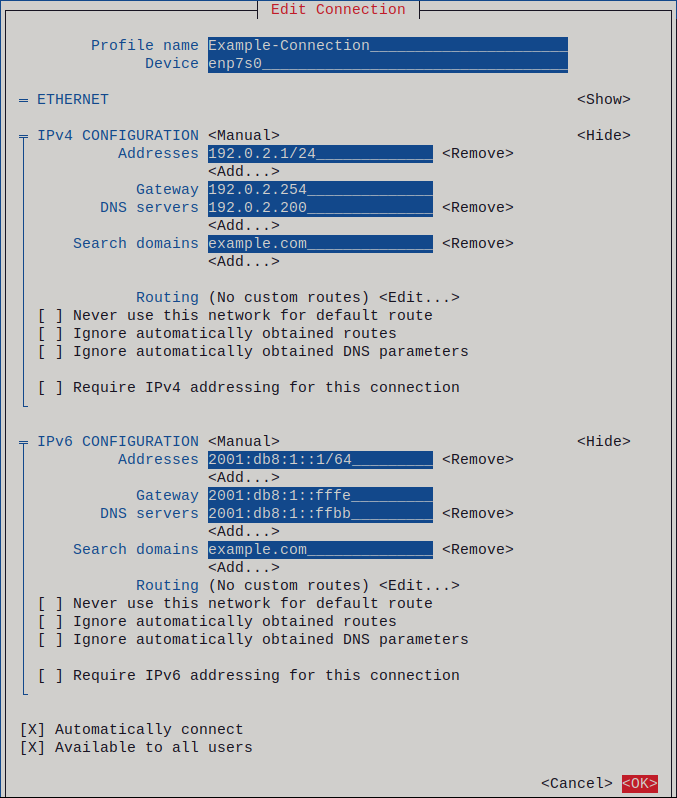
Manual, if the network requires static IP address settings. In this case, you must fill further fields:
- Press Show next to the protocol you want to configure to display additional fields.
-
Press Add next to Addresses, and enter the IP address and the subnet mask in Classless Inter-Domain Routing (CIDR) format.
If you do not specify a subnet mask, NetworkManager sets a
/32subnet mask for IPv4 addresses and/64for IPv6 addresses. - Enter the address of the default gateway.
- Press Add next to DNS servers, and enter the DNS server address.
- Press Add next to Search domains, and enter the DNS search domain.
Figure 2.1. Example of an Ethernet connection with static IP address settings
- Press OK to create and automatically activate the new connection.
- Press Back to return to the main menu.
- Select Quit, and press Enter to close the
nmtuiapplication.
Verification
-
Display the IP settings of the NIC:
# ip address show enp1s0 2: enp1s0: <BROADCAST,MULTICAST,UP,LOWER_UP> mtu 1500 qdisc fq_codel state UP group default qlen 1000 link/ether 52:54:00:17:b8:b6 brd ff:ff:ff:ff:ff:ff inet 192.0.2.1/24 brd 192.0.2.255 scope global noprefixroute enp1s0 valid_lft forever preferred_lft forever inet6 2001:db8:1::fffe/64 scope global noprefixroute valid_lft forever preferred_lft forever -
Display the IPv4 default gateway:
# ip route show default default via 192.0.2.254 dev enp1s0 proto static metric 102 -
Display the IPv6 default gateway:
# ip -6 route show default default via 2001:db8:1::fffe dev enp1s0 proto static metric 102 pref medium -
Display the DNS settings:
# cat /etc/resolv.conf
search example.com
nameserver 192.0.2.200
nameserver 2001:db8:1::ffbb
If multiple connection profiles are active at the same time, the order of
nameserverentries depend on the DNS priority values in these profiles and the connection types. -
Use the
pingutility to verify that this host can send packets to other hosts:# ping <host-name-or-IP-address>
Troubleshooting
- Verify that the network cable is plugged-in to the host and a switch.
- Check whether the link failure exists only on this host or also on other hosts connected to the same switch.
- Verify that the network cable and the network interface are working as expected. Perform hardware diagnosis steps and replace defective cables and network interface cards.
- If the configuration on the disk does not match the configuration on the device, starting or restarting NetworkManager creates an in-memory connection that reflects the configuration of the device. For further details and how to avoid this problem, see the Red Hat Knowledgebase solution NetworkManager duplicates a connection after restart of NetworkManager service.